🗂️ Overview
Who is this for?
Cross-listing allows instructors to combine multiple course sections into a single Canvas course. This can simplify course management by allowing you to maintain one set of content, assignments, announcements, and grades while students from multiple sections remain enrolled in their respective course sections.
☑️ Before you begin
Before cross-listing courses, keep the following in mind:
- Decide which course will serve as the primary course (the course that contains your content and will remain active).
- You should initiate the cross-listing process from the course that will be merged into the primary course.
- Student enrollments from the selected section will be moved into the primary course.
- If the course being cross-listed contains student submissions, grades, or other course activity, that information may no longer be accessible after the cross-listing is completed.
- Review and save any needed information before proceeding.
💡Cross-listing can be reversed through a process called de-cross-listing; however, only Canvas administrators can perform this action. If you need to separate courses after they have been cross-listed, submit a Help Desk ticket for assistance.
🪜 Steps
Step 1
Open the course section that you want to merge into your primary course and select Settings.
This should typically be the course that does not contain your active course content.
Step 2
Select the Sections tab at the top of the Settings page.
Step 3
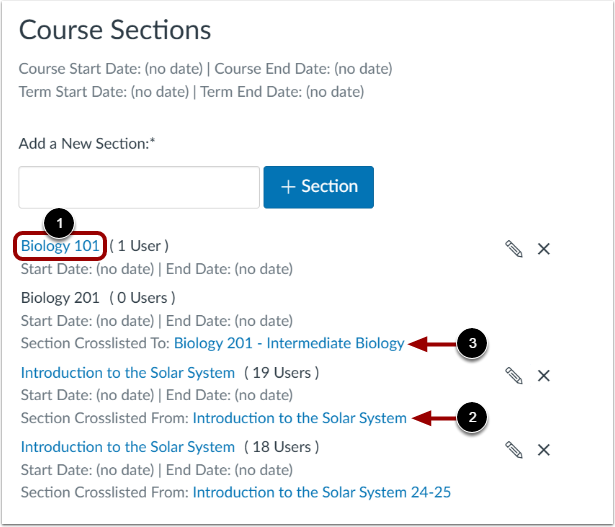
Click the section name that contains the students you want to move into the primary course.
Step 4
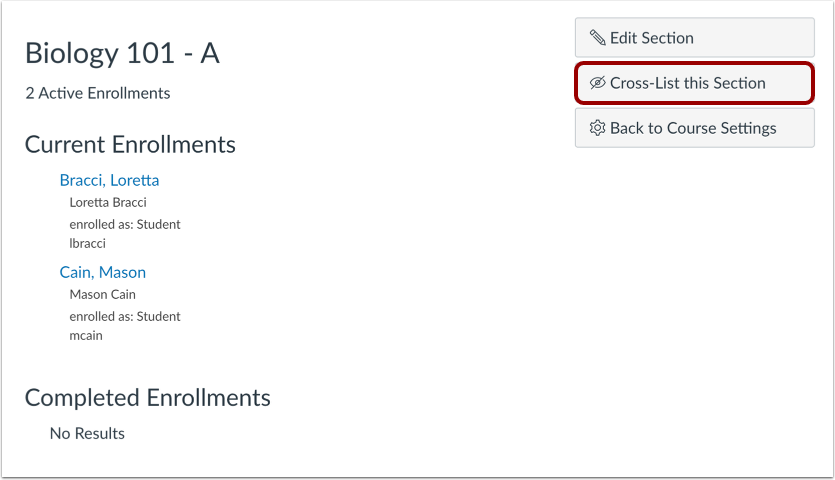
On the section details page, select Cross-List this Section.
Step 5
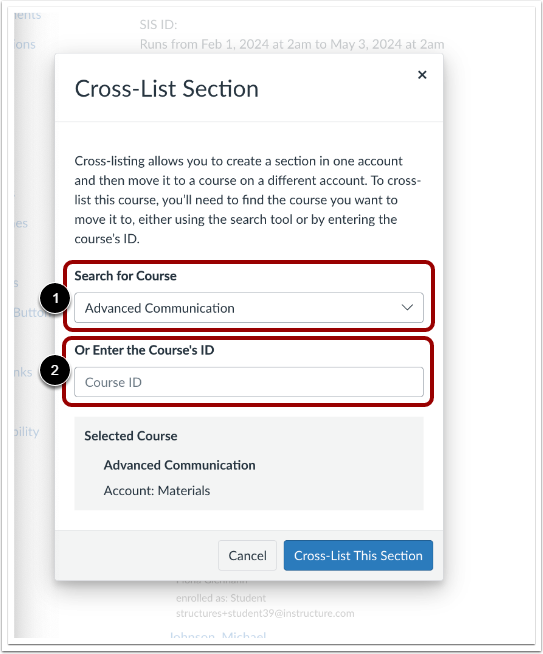
In the Search for Course field, enter part of the name of your primary course.
Step 6
Select the correct course from the list of search results.
Step 7
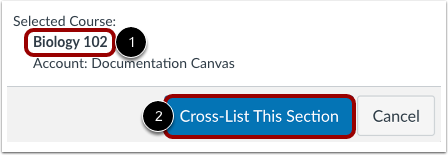
Confirm you have the correct course. Then click Cross-List This Section.
Step 8
Confirm the action when prompted.
✅ Expected Result
After the cross-listing is complete:
- The selected section will appear under the primary course.
- Students from the cross-listed section will have access to the primary course content.
- The primary course will display all associated sections under Settings > Sections.
- You can manage content, assignments, grades, and announcements from a single course.
💡 Tips/Troubleshooting
I don't see the Cross-List this Section button
I cannot find my target course
Students or grades are missing after cross-listing
-
Refresh the course and allow a few minutes for Canvas to update enrollments.
-
Review whether the section contained existing grades or submissions before it was cross-listed.
-
Contact the YCCD Help Desk for assistance if expected enrollments or data do not appear.